CygNet TRS Import/Export Utility
The CygNet TRS Import/Export utility provides a method for offline review and editing of Table Reference Service (TRS) tables. The source file is a .csv file and can be reviewed and edited using any text editor.
This utility does not delete records; it only adds new records or updates existing records. The CygNet TRS Import/Export utility can be set to auto run.
The CygNet TRS Import/Export Utility dialog box appears.
|
Click the thumbnail to see an example |
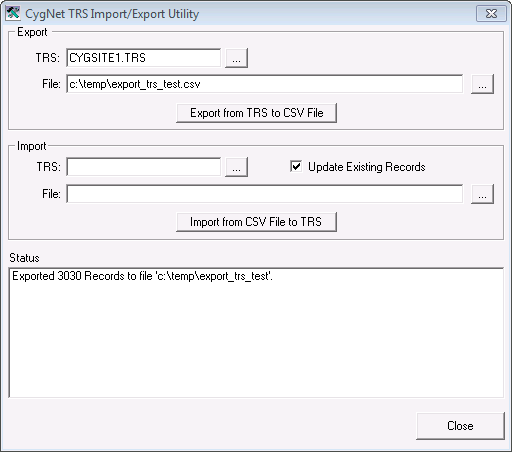
The CygNet TRS Import/Export utility is stored in the CygNet\Utilities directory (TRSLoad.exe) on the host server.
Starting TRS Import/Export
Installing and Launching
To install and launch (start) the application or utility using version management:
- Use CygNet Client Installer to install and launch the application. Once installed you can use CygNet Client Installer to start the application.
-OR-
- If previously installed, click Start > All Programs > CygNet > <name of the application or utility> or double-click the desktop shortcut.
Alternatively, browse to the CygNet\Utilities directory using Windows Explorer and double-click the program icon. You can also start an application or utility from a command line. These methods do not provide version management.
Exporting and Importing Tables
Exporting saves the tables to a .csv file. If the specified .csv file already exists, it will be replaced when the export is run.
The import command uploads tables to the TRS from a .csv file. The utility checks each line in the file for validity before uploading. The first row of the file is the header row. Each table entry record constitutes one successive row under the header.
The following table describes the .csv file format:
| Column | Description |
|---|---|
| TABLE | Table name (up to 8 characters) |
| ENTRY | Table entry (up to 10 characters) |
| DESC | Entry description (Up to 40 characters) |
| CHILD | Not used. |
To Export Facility Attributes
- In the Export area, select the TRS by clicking … next to the TRS box.
- Type a file name (including the .csv extension) to which to export the tables in the File box. If you do not specify a path, the file will be created in the same directory from which the utility is run (typically CygNet\Utilities). You can click … to select a particular directory. Browsing will insert a default file name (trs.csv). You can overwrite this name.
- Click Export from TRS to CSV.
- When the export is complete, a message box showing the number of records exported will be displayed.
To Import Facility Attributes
- In the Import area, select the TRS by clicking … next to the TRS box.
- Type the name of the file that contains the tables to import. You can use … to select the file.
- To update existing records (rather than skip them), click to check the Update Existing Records box.
- Click Import from CVS to TRS.
- When the import is complete, a box showing the number of records imported will be displayed. It shows the number of records added, updated, skipped, and an error count.
Auto Run
The CygNet TRS Import/Export utility file (TRSLoad.exe) can be set to run automatically.
Syntax
The command-line syntax for the utility is:
trsload /s [/u][-E <trs_name> <export_filepath>] [-I <trs_name> <import_filepath>]
| Parameter | Description |
|---|---|
| /s | Secret. Run TRS Load without showing the dialog box. This parameter is required to auto run. |
| /u | Update. On Import, update existing records. |
| -E | Export. Export from <trs_name> to <export_filepath> |
| -I | Import. Import from <import_filepath> to <trs_name> |
Example
|
trsload /s /u -I cygnet.trs c:\sandbox\trs.csv |
This would load the file trs.csv into the cygnet.trs in hidden, update mode.


